Garena Free Fire is the most popular battle royale game on Android. It remains a favourite even today. But if you’re playing competitively, smooth FPS is crucial. Since the 2026 update, graphics have become even heavier. The game now even offers a 120 FPS option.
But the biggest problem is that lag, frame drops, and heating issues have become quite common among those who have low-end devices (2–4 GB RAM). When they play matches, the FPS drops drastically, the ping increases, and the game does not feel smooth. Due to this, it becomes difficult for players to rank push.
In this guide, we’re going to give you some proven tips to unlock maximum performance. In this, we will also tell you about in-game settings changes and some device tips also.
Whether you are using a budget phone or a high-end flagship device, if you follow these steps, you can experience 60+ FPS gameplay. The ping will also be much lower, and the game will run much smoother.
Also Read > Common Astute Beta Server Errors and How to Fix Them (2026 Edition)
If you want the best result, then follow all the steps correctly.
In-Game Graphics and Display Settings
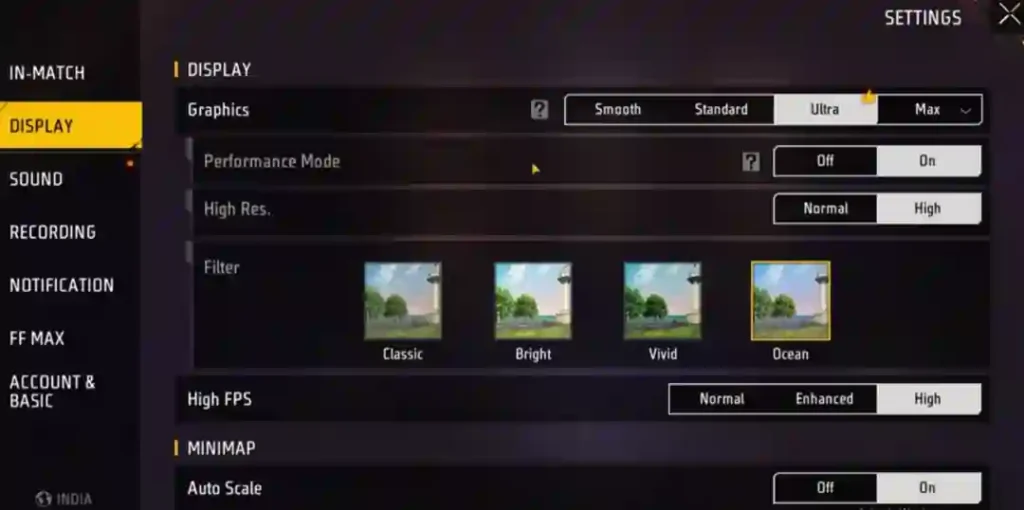
If you want to play smooth gameplay in Free Fire, then it is very important to have the right graphics and display settings. If the settings are too heavy, then FPS drop, lag, and heating issues may also occur. Therefore, you should always use performance-focused settings so that the game remains stable and responsive.
So follow the correct steps given below so that you can get the best results.
Best Graphics Configurations for All Devices
First, open Free Fire on your device, then go to Settings > Display option. Now you need to set the graphics to Smooth. By doing this, it gives much more priority to FPS over visuals, which will be best for low-end Android phones.
Apart from this, you should use High or Extreme FPS. If you are using a low-end device, so Medium (45 FPS) is going to be safe for you, so that there is no stutter at all.
To get extra performance, turn OFF all of the following options:
- Shadows
- Visual Effects
- HD Textures
- Vehicle Effects
By turning off all these options, you can see approximately a 20–30% FPS boost.
Apart from this, you also have to turn off Auto Adjust Graphics so that the game does not change your settings at all.
If you are using Free Fire MAX, select Classic Lobby Style and Classic Animation.
With this setting, you can easily deliver stable 60 FPS on 4GB RAM devices, and on flagship phones, you can get much smoother performance up to 90+ FPS.
Sensitivity and Control Tweaks for Precision
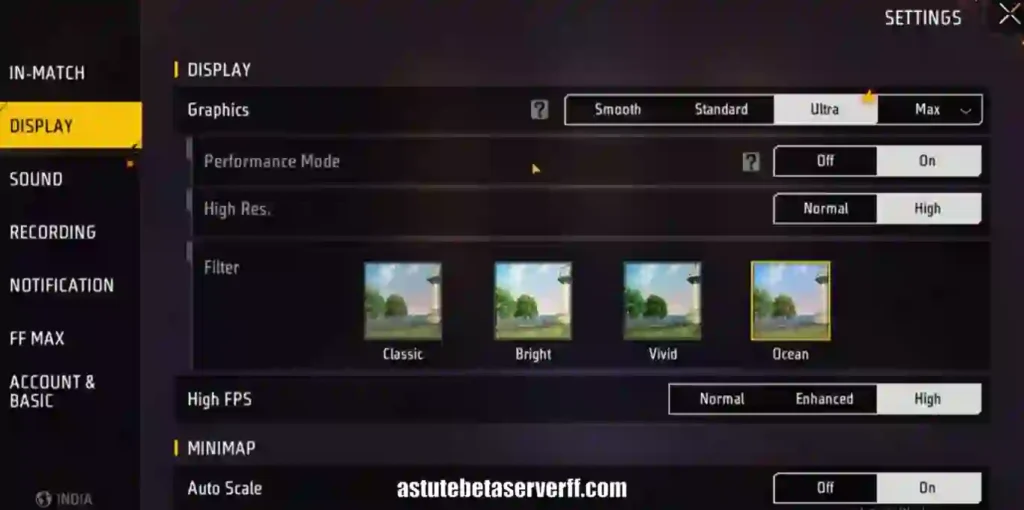
Let me tell you that performance is not just about FPS – smooth controls are also very important.
Recommended Sensitivity:
- General: 95–100%
- Red Dot: 90%
- 2x Scope: 85%
- 4x Scope: 75%
- AWM Scope: 65%
- Free Look: 100%
If you are using a low-end phone, you can keep General at 100% for faster turns.
If you want better control, try the 4-Finger Claw HUD.
- Button Size: 110–120%
- Transparency: 30–40%
Here, keep all the following options ON:
- Double Fire Button
- Switch Button
- Reload Button
- Auto Pickup (Scope, Bag, Armor)
Audio settings:
- Effects: 95%
- Voice Chat: 40%
If you practice for 15 minutes daily on Training Island, this full setup will significantly improve your aim, without putting any extra load on the CPU.
Essential Device-Level Optimizations
If you want smooth FPS in Free Fire, it is very important to do phone-level optimization. If the RAM and system are completely clean, then the lag will be much less, and the gameplay will be much more stable. Follow all the steps given below so that you can get the best performance.
Free Up RAM, Storage, and Clear Cache
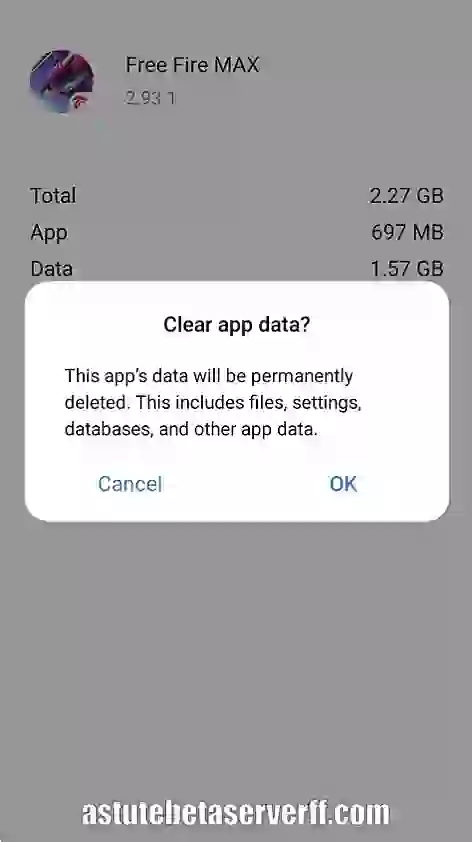
The biggest reason for lag is phone clutter. You first go to Settings > Apps > Free Fire > Storage > Clear Cache/Data option, then (take progress backup before clearing data).
Uninstall all the apps that you do not use and delete all the junk files to free up space. Whenever you start the game, try to have 2GB+ of free RAM available. You can also use the built-in RAM booster.
Open Recent Apps and close all the background apps by swiping them down. If there is a Game Mode option on your Samsung or Xiaomi phone, turn it on so that the CPU can prioritize the game. Restarting the device before starting the game also proves to be very helpful.
With these steps, you can usually free up 1–2GB of RAM and can also see a boost of approximately 15–20% in FPS.
Unlock Developer Options for Pro Tweaks
First, go to Settings > About Phone and tap Build Number seven times, which unlocks Developer Options.
Now you have to make these changes:
- You can set the Animation Scales (Window/Transition/Duration) to 0.5x or even Off. This reduces the UI lag by half.
- Limit Background Processes to at most 2–3 for maximum game RAM.
- Force 4x MSAA to OFF – This saves your device’s battery and FPS.
Optional: You can test (if stable) by Force GPU Rendering ON.
Along with this, you have to keep Battery Saver OFF and set Peak Refresh Rate to high.
All these changes make your phone faster than before. Now your device is perfect for Free Fire rush gameplay.
Advanced Tools: GFX Boosters and Apps
Using GFX tools and booster apps is very helpful for extra performance. If you do the correct setup, the FPS becomes stable, the lag reduces considerably, and the gameplay also becomes smooth. Follow all the steps given below.
Safe GFX Tools for 90–120 FPS Unlock
Download the best GFX Tool for Free Fire on your device from Google Play or a trusted APK. It’s generally safe (VirusTotal scans are clean), and the risk of being banned is very low, as it simply overrides the graphics.
In the tool, you have to select Smooth + 90/120 FPS, Zero Lag Mode, and 720p resolution. Apps like FF Launcher or Game Booster also auto-kill background tasks. They also monitor CPU/RAM. And if you launch the game with the booster, you can see an improvement of up to +30 FPS on low-end phones.
Caution: Avoid root mods. Use only no-root versions. Regularly update your Free Fire and phone OS. This is crucial for compatibility.
Network, Cooling, and Hardware Tips
It’s best to keep ping <50ms for stable gameplay. Use WiFi 5GHz instead of mobile data. Turn off all apps that use bandwidth in the background on your device. Turn on Do Not Disturb so that notifications do not disturb you.
Here are some tips to prevent overheating:
- Play in AC (very helpful in summers)
- Take a 5-minute break every 30 minutes
- Don’t play games while charging (battery 20–80% is best)
- Keep the brightness around 50% or less
Hardware tips:
- The 90Hz+ refresh rate screen feels much smoother
- Minimum 4GB RAM is recommended
For long sessions, you can use an external cooler or fan.
Recommended Settings by Device Type:
| Device Type | Recommended FPS | Graphics |
|---|---|---|
| Low-End (2–4GB) | Medium (45–60) | Smooth, Shadows Off |
| Mid-Range (6GB) | High (60–90) | Smooth/Standard |
| High-End (8GB+) | Extreme (90–120) | Ultra |
Conclusion
If you follow all these steps, then you can expect almost zero lag on clutch moments at 60+ FPS. First, test these settings in Classic matches and then use them in ranked matches.
Regular practice + true optimizations = easy Heroic push.
Also Read: How to Block or Limit Free Fire (Parental Control Guide)